How to Save Gmail PDF Attachments to Google Drive with Pabbly AgenticAI
This was easier to build than we expected. Instead of manually configuring every step, we described the workflow to Pabbly AgenticAI in plain English, connected Gmail and Google Drive when prompted, and let the AI generate the workflow. In our real test, it found 10 unread Gmail messages with PDF attachments and saved all 10 PDFs to Google Drive.
- Gmail account connected to Pabbly.
- Google Drive account connected to Pabbly.
- Plain-English instruction: save only PDF attachments and keep the original filename.
- AgenticAI generated two runtime steps.
- Manual test found 10 unread emails with PDFs.
- All 10 PDFs were saved to Google Drive.
- The generated Gmail step marked the matching messages as read.
What you are building
The goal is simple:
Gmail → find emails with PDF attachments → save the PDFs to Google Drive → keep the original filename.
We specifically asked Pabbly to ignore non-PDF attachments. The generated workflow successfully handled the PDF workflow in our test.
Step 1: Open Pabbly and create an AI workflow
From Pabbly Connect, choose the AI workflow creation option and create a new workflow. We named ours Gmail PDF Attachments to Google Drive.
Our impression: this is where Pabbly felt unusually approachable. We did not need to know in advance which exact Gmail trigger or Google Drive action to choose. The AI conversation guided the setup.
Step 2: Describe the workflow in plain English
We gave AgenticAI an instruction equivalent to:
When a new email with a PDF attachment is received in Gmail,
save only the PDF attachment to Google Drive.
Ignore non-PDF attachments.
Keep the original file name.
AgenticAI understood that the workflow needed Gmail and Google Drive, then checked whether those accounts were connected.
Step 3: Connect Gmail
Pabbly asked us to connect Gmail. After authorizing the Google account, the connection appeared in the AI conversation and we attached it to the workflow.
There was an extra connection/attach step compared with Albato, but the AI kept telling us what to do next. For a beginner, that conversational guidance reduced the amount of guesswork.
Step 4: Connect Google Drive
The same process repeated for Google Drive: authorize the account, return to Pabbly, then attach the Drive connection to the workflow.
Step 5: Let AgenticAI generate the workflow
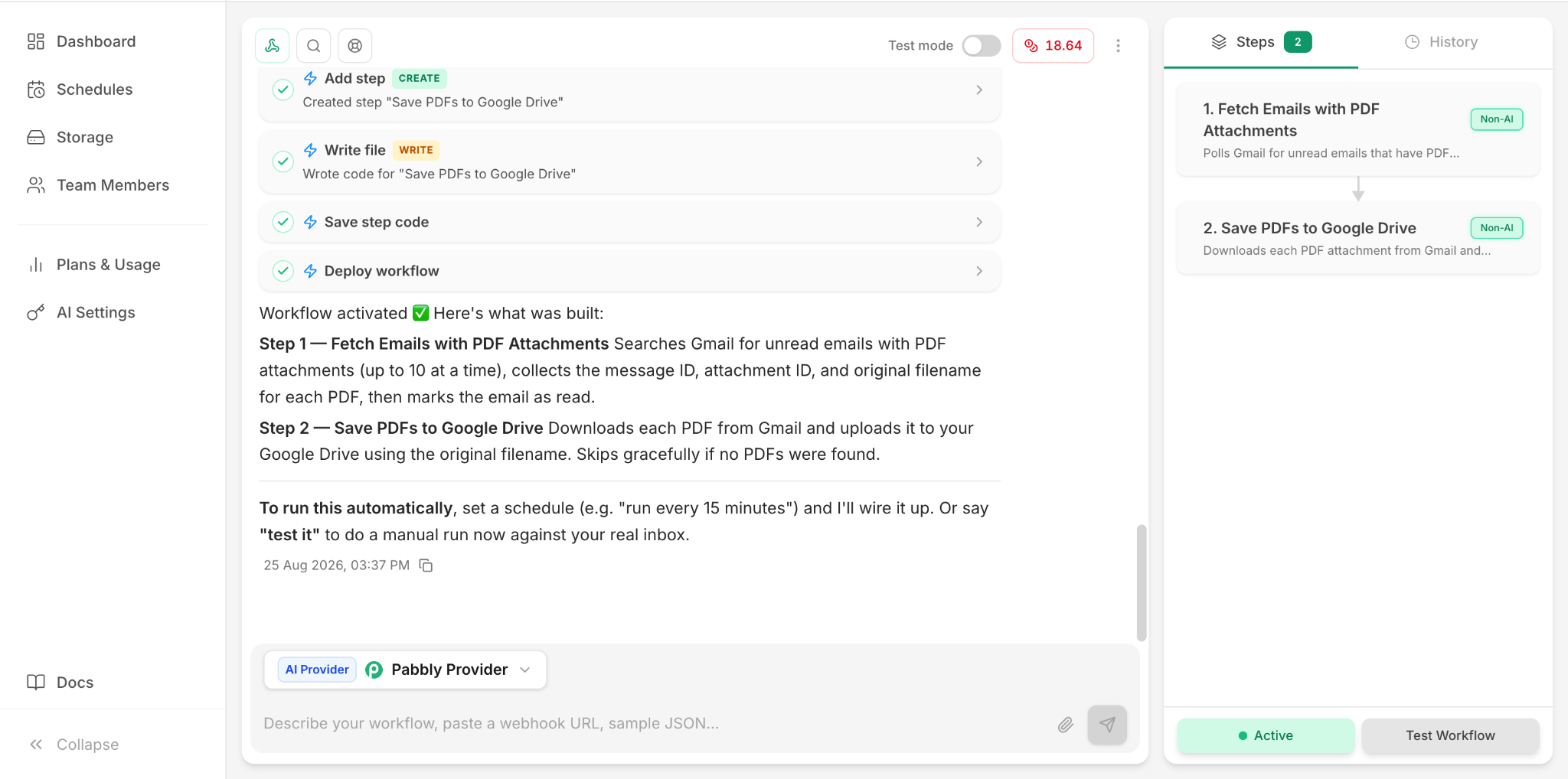
After both accounts were connected, Pabbly generated two runtime steps:
- Fetch Emails with PDF Attachments
- Save PDFs to Google Drive
Step 6: Run Test Workflow
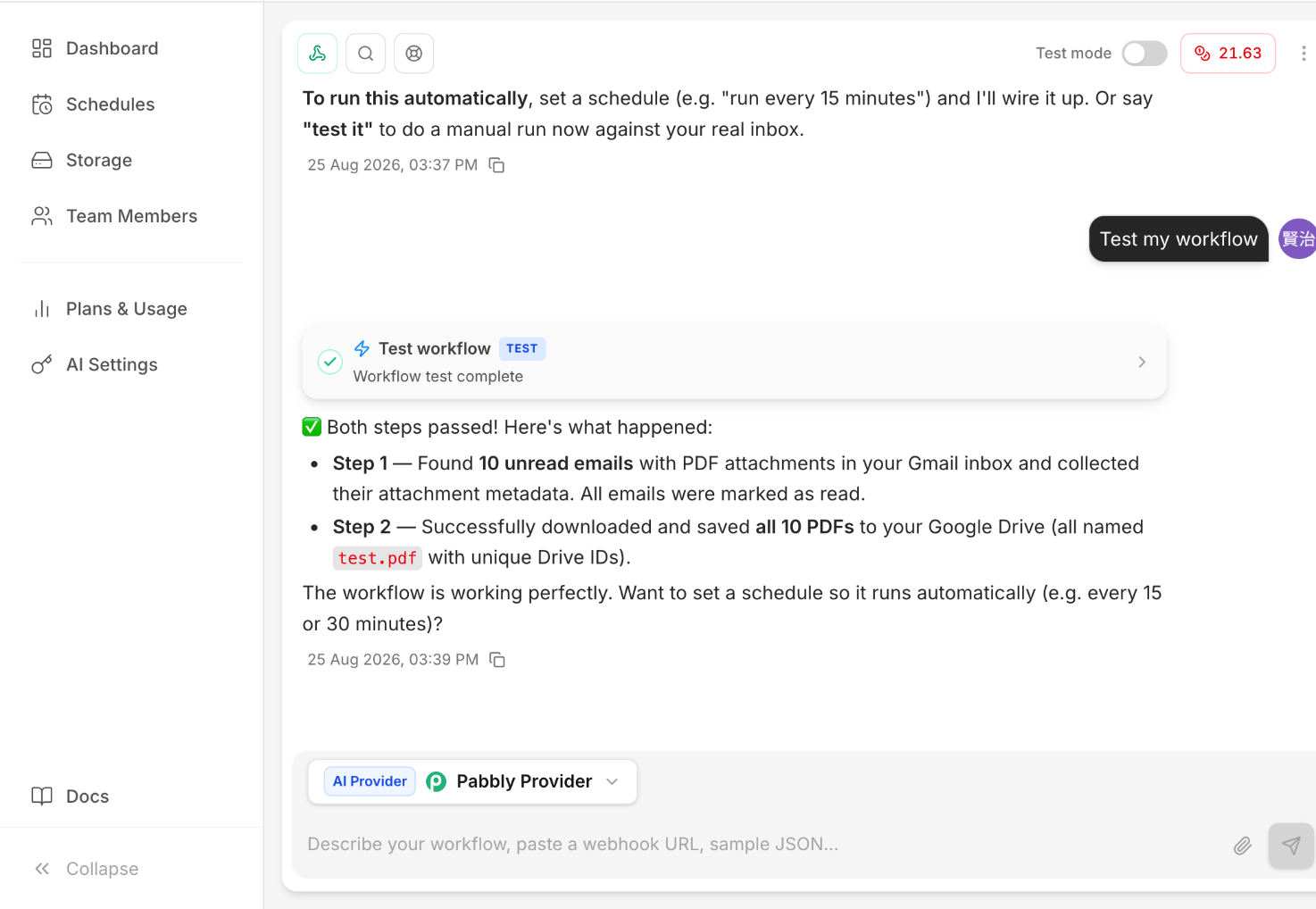
We then ran the workflow against the connected Gmail inbox.
The result was clear:
- 10 unread emails with PDF attachments were found.
- All 10 PDFs were saved to Google Drive.
- The original filename shown in our test was retained.
Important: the generated workflow marked emails as read
This is the biggest caveat from our test. The generated Gmail step marked the matching unread messages as read.
That behavior may be fine for a dedicated automation inbox. But if unread status is important to your normal Gmail workflow, check the generated behavior before using it on your primary inbox.
It was not an instant “new email” trigger in our generated workflow
Although our instruction described a new email arriving, AgenticAI generated a workflow that searched for unread messages with PDF attachments. In our manual test, it found up to 10 matching emails.
So the exact workflow we tested is better described as a scheduled inbox check than an instant push trigger.
Automatic scheduling is a separate step
After the manual test succeeded, Pabbly offered to set a schedule such as every 15 or 30 minutes. The successful result shown above was a manual test—not a continuously scheduled production workflow.
Pabbly's official AgenticAI pricing page currently says the free AgenticAI plan includes 5 workflows and 100 Units, while schedulers are not available on the Free plan. Pabbly Connect itself separately lists a free plan with 100 tasks per month. These are different usage systems, so check the current plan details before choosing a setup.
Our personal take: easier than expected
Of the tools we have tested, Pabbly was one of the most interesting from a beginner-experience perspective because we could keep telling the AI what we wanted and following its prompts.
For this specific Gmail PDF workflow, we did not feel like we were “programming an automation.” It felt more like explaining the desired result, authorizing the necessary apps, and letting the AI assemble the workflow.
That does not mean you should accept every generated step without checking it—the read-status behavior is exactly why verification matters. But for getting from an idea to a working first version, the conversational setup was genuinely easy in our test.
Pabbly vs Albato vs Make for this workflow
| Tool | What stood out in our tests | Best fit |
|---|---|---|
| Albato | Very low setup friction; Copilot helped correct our trigger choice. | Simple Gmail/Drive workflows and beginners. |
| Pabbly | AgenticAI generated the actual workflow from a plain-English instruction. | People who want AI-guided workflow creation. |
| Make | Strong visual control for filters, routers, filename logic and more complex branching. | Workflows likely to grow in complexity. |
| n8n | More technical control over expressions, binary data, APIs and self-hosting. | Technical users who want deeper control. |
Which option should you try?
If your priority is the easiest simple setup, Albato remains our easiest-start pick. If you specifically want to describe a workflow to AI and have it build the steps, Pabbly is compelling based on this test. For more visual workflow logic, we would still start with Make.
Affiliate disclosure: Make, Albato, and Pabbly are active affiliate relationships. We may earn a commission from tracked links at no additional cost to you. Our n8n application was not approved, so n8n links on this site are non-affiliate.
Related guides
- Pabbly Connect hands-on review
- Make vs Albato vs Pabbly vs n8n
- Save only Gmail PDF attachments with Albato
- Save only Gmail PDF attachments with Make
- Best Gmail attachment automation tool