How to save only PDF Gmail attachments to Google Drive with Albato
We tested this with a single email containing both a PDF and an image. Albato saved the PDF to Google Drive and ignored the image. The most useful part was what happened when the first setup choice was wrong: Copilot explained why the file could not be mapped and helped us switch to the right Gmail trigger.
Workflow: Gmail attachment → PDF filter → Google Drive. Test email: one PDF + one image. Drive result: test.pdf saved; image not saved.
Affiliate disclosure: the Albato signup link is an affiliate link. We may earn a recurring commission if you later purchase, at no additional cost to you.
The final workflow
Get new attachments
(in separate files)2. Filter
fileType contains "pdf"3. Google DriveAdd file
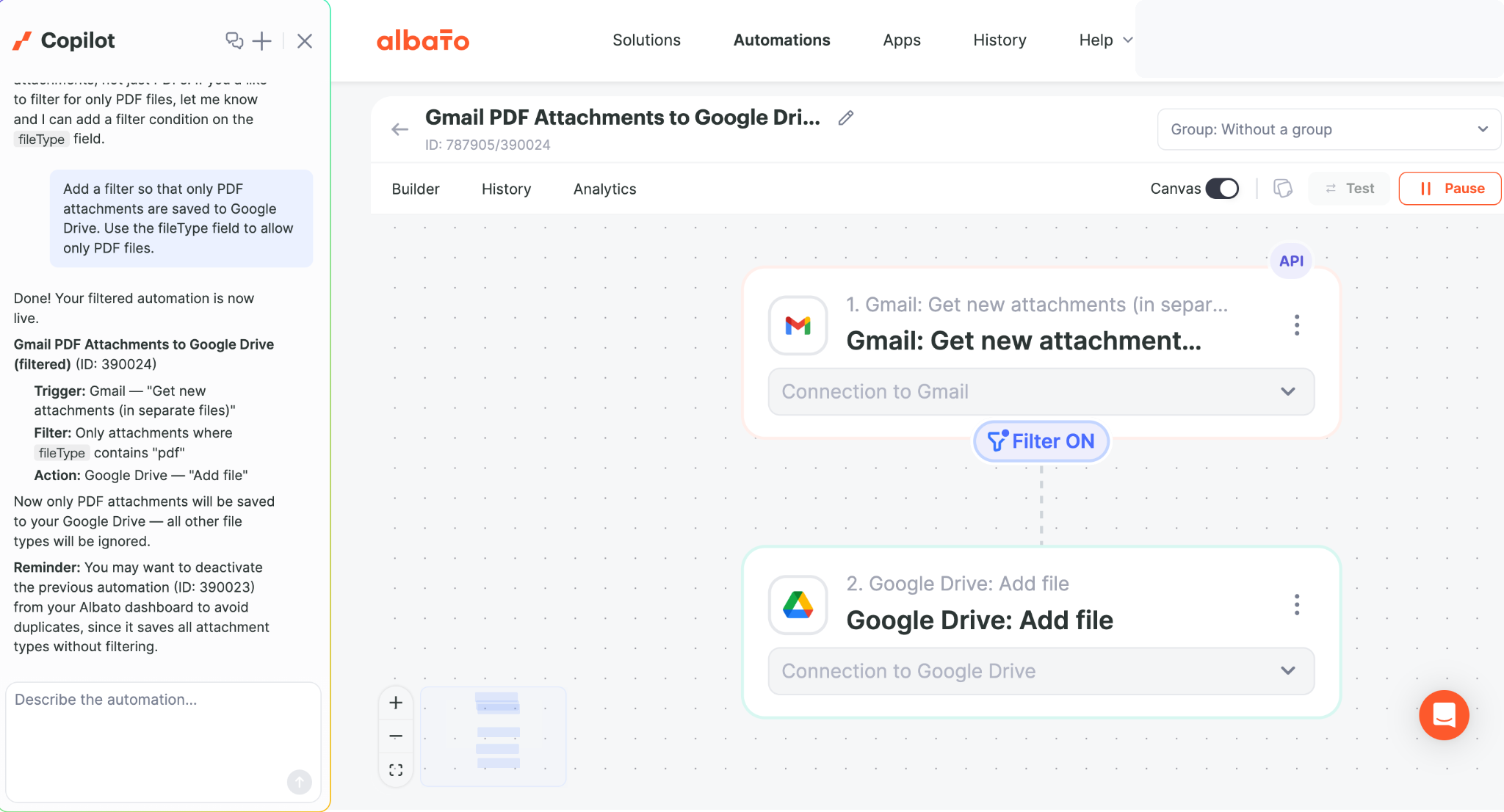
Where Copilot actually helped
Our first attempt used Gmail's Email received trigger. Albato then showed that Google Drive's Add file action needed an actual file field, while that trigger only exposed attachment metadata such as the attachment count.
Copilot suggested switching to Get new attachments (in separate files). That trigger outputs each attachment separately, which made it suitable for mapping into Google Drive.
We then described the next requirement in plain English: save only PDF attachments. Copilot added a filter based on the attachment's fileType.
Step 1: Use the attachment-specific Gmail trigger
Select Get new attachments (in separate files). In our test, this was the key change that made the actual attachment available to Google Drive.
Step 2: Add Google Drive “Add file”
Connect Google Drive and select the Add file action. Albato can then map the attachment file from the Gmail trigger directly into Drive.
Step 3: Add the PDF-only filter
We asked Copilot to allow only PDFs. The resulting condition was:
fileType contains "pdf"
The filter sits between Gmail and Google Drive, so non-PDF attachments stop before upload.
Step 4: Test with mixed file types
A PDF-only test would prove that uploading works, but not that filtering works. We therefore sent one PDF and one image in the same email.
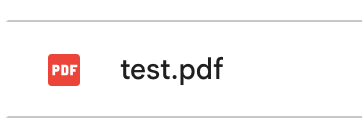
test.pdf was saved.What this says about Albato
For this specific use case, Albato's guided flow was easy to refine even after we hit a setup problem. The combination of a simple builder and Copilot made the next action easier to find.
That does not mean Albato is automatically better for every workflow. Our Make testing goes further into routers, multi-condition filters, folder routing, and filename transformations. n8n remains the more technical option when expressions, APIs, binary data, or self-hosting are central to the job.
Want a low-friction way to build this PDF-only flow?
Albato is the easiest starting experience we have tested for this kind of straightforward Gmail → Drive automation, and Copilot was useful when we got stuck.
Affiliate disclosure: the Albato button is an affiliate link. We may earn a recurring commission if you later purchase, at no additional cost to you.