How to Automatically Sort Gmail PDF Attachments into Google Drive Folders with Make
We extended our Gmail PDF workflow with a Make Router so invoice emails are saved to an Invoices folder and report emails are saved to a Reports folder automatically.
invoice was sent to the Invoices route, while an email whose subject contained report was sent to the Reports route. Each PDF reached the intended Google Drive upload module.
What we are building
The workflow starts with the same Gmail modules used in the earlier guides, but adds a Router after the common PDF/sender filter. The Router then evaluates the email subject and sends the attachment down the correct route.
Gmail — Watch emails
↓
Gmail — List email attachments and media
↓
Common filter: PDF + specified sender
↓
Router
├─ Subject contains "invoice" → Google Drive / Invoices
└─ Subject contains "report"  → Google Drive / Reports
Why the subject filter belongs after the Router
During testing, we initially still had Subject = invoice in the common filter before the Router. That prevented report emails from ever reaching the Router. The fix was to keep only the conditions shared by both routes before the Router:
MIME type
Equal toapplication/pdfFrom (email)
Equal tospecified sender
The subject is then evaluated separately on each Router branch. This structure allows multiple document types to share the same Gmail/PDF checks without blocking each other.
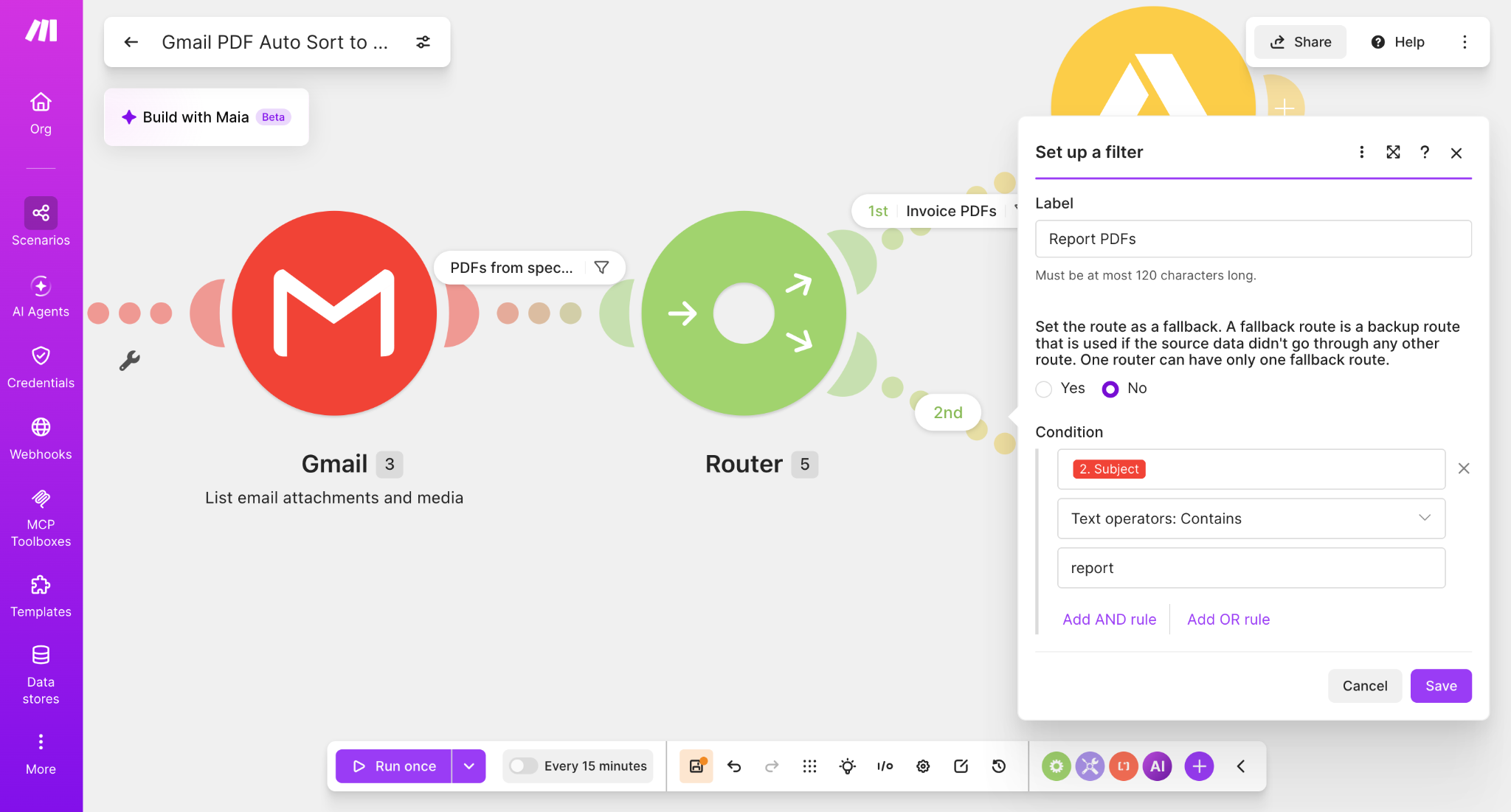
Create the two Router branches
Add a Router between Gmail — List email attachments and media and the Google Drive upload step. Configure two routes:
| Route | Filter | Google Drive folder |
|---|---|---|
| Invoice PDFs | Subject → Contains → invoice | Make_Gmail_Attachments / Invoices |
| Report PDFs | Subject → Contains → report | Make_Gmail_Attachments / Reports |
Configure each Google Drive upload module
Each Router branch needs its own Google Drive — Upload a File module. The destination folder changes by route, while the file content still comes from the Gmail attachment module.
Invoice route
Folder: /Make_Gmail_Attachments/Invoices/
File Name: Gmail attachment → Filename
Data: Gmail attachment → Data

Report route
Folder: /Make_Gmail_Attachments/Reports/
File Name: Gmail attachment → Filename
Data: Gmail attachment → Data
Test 1: invoice email
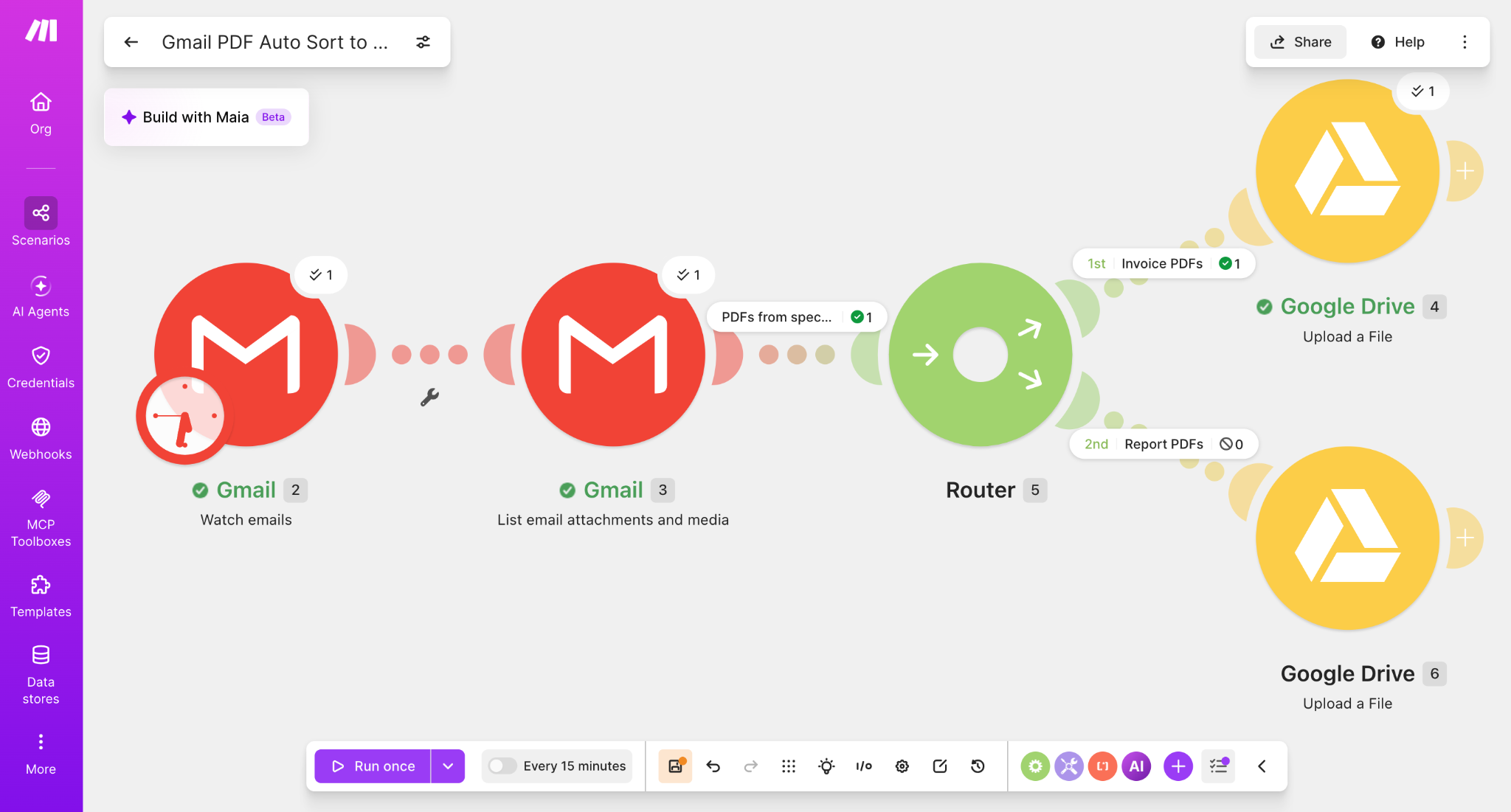
We ran the scenario with a PDF email whose subject matched the invoice route. The common PDF/sender filter passed one bundle, the Invoice PDFs branch passed one bundle, and the Report PDFs branch passed zero bundles. Google Drive module 4 uploaded the file successfully.
Test 2: report email
We then tested the other branch using a PDF email whose subject matched report. The Invoice PDFs branch passed zero bundles, the Report PDFs branch passed one bundle, and Google Drive module 6 uploaded the file successfully.

What we verified
- A shared PDF/sender filter can be placed before the Router.
- The subject condition should be moved to the individual Router branches when multiple subjects need different destinations.
Subject → Contains → invoiceroutes invoice emails to the invoice branch.Subject → Contains → reportroutes report emails to the report branch.- Each branch can upload the same Gmail attachment data to a different Google Drive folder.
- Both positive paths were tested successfully.
When this pattern is useful
The same Router structure can be expanded beyond invoices and reports. For example, you can create separate routes for receipts, purchase orders, statements, contracts, or department-specific documents. The key is to keep shared conditions before the Router and route-specific conditions on each branch.
Next step
A useful next extension is to rename the PDF automatically before upload—for example, adding the date, sender, or document type to the filename.
Build this workflow in MakeAffiliate disclosure: Some links on Automation Lab Guide may be affiliate links. If you register through one of these links and later become a paying customer, we may receive a commission at no additional cost to you.