How to Automatically Save Gmail Attachments to Google Drive with Albato
We built this workflow ourselves in Albato and successfully saved a real PDF attachment from Gmail to Google Drive. What stood out was the setup experience: for this simple two-app workflow, we barely used the keyboard. Albato's Copilot created the flow and we mostly clicked through the suggested steps.
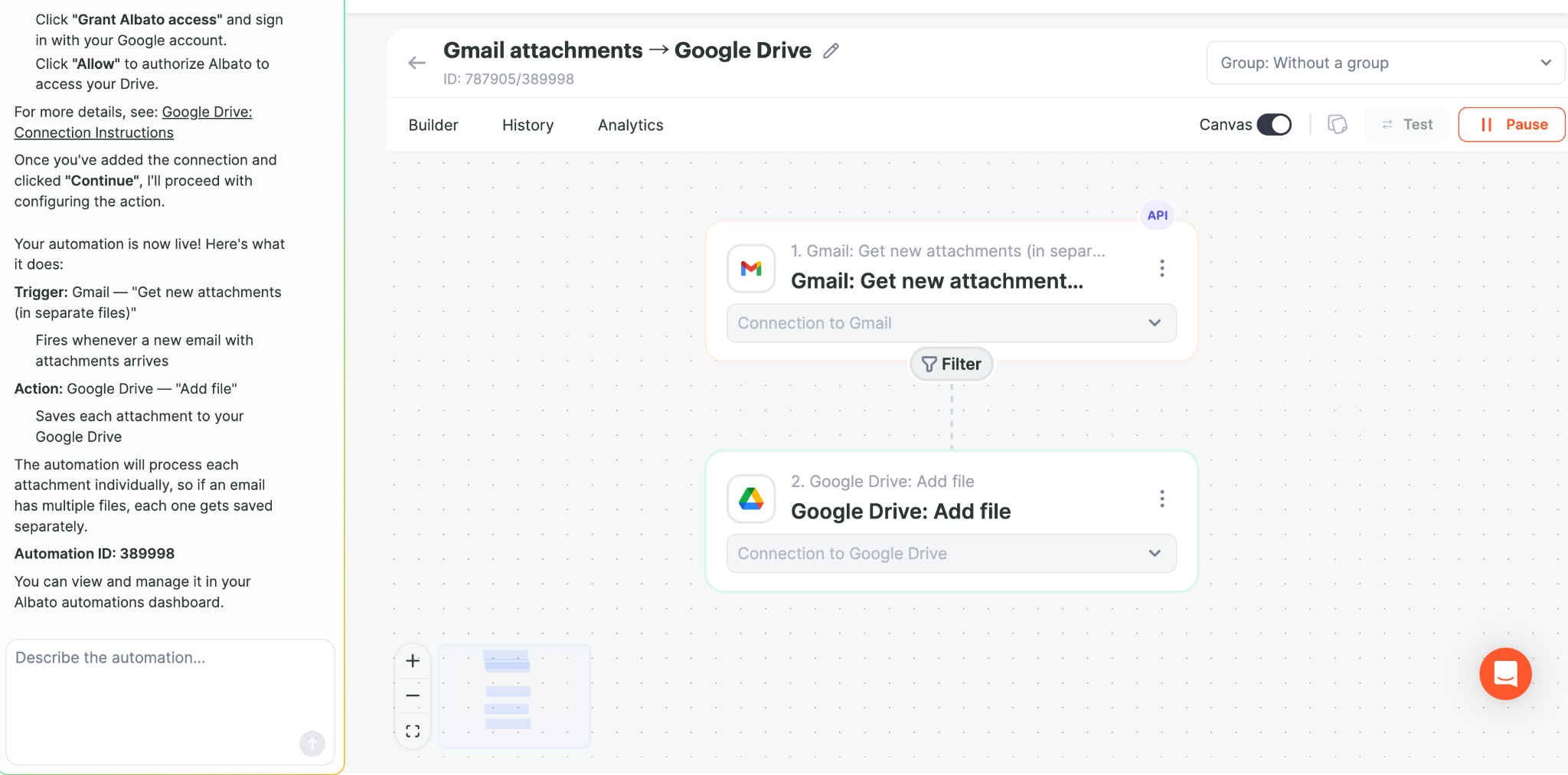
Gmail attachment received → Albato detected the attachment → Google Drive saved the file successfully.
Our test file appeared in Drive as 2026-08-23_test.pdf.
Affiliate disclosure: the Albato signup link is an affiliate link. We may earn a recurring commission if you later purchase, at no additional cost to you.
Why this workflow was easier than expected
We started from Albato's Copilot and described the automation in plain language. Albato then created the basic workflow structure and guided us through each step.
- Select the Gmail trigger.
- Connect the Gmail account.
- Select the Google Drive action.
- Connect the Google Drive account.
- Launch the automation.
- Send a test email with a PDF attachment.
- Confirm that the PDF appears in Google Drive.
Our actual experience: compared with the other automation tools we tested, this was the least demanding initial setup. We did not need to manually build expressions or configure a complicated scenario just to save an attachment.
Step 1: Create the automation with Albato Copilot
On the Albato dashboard, we described the use case as a Gmail attachment → Google Drive automation. Copilot created the automation skeleton for us.
Step 2: Choose the Gmail attachment trigger
Albato offered the Gmail trigger for new attachments. The workflow was configured to process attachments individually, so multiple files in one email can be handled separately.
Step 3: Connect Gmail
We connected Gmail through Google's OAuth authorization flow. There was no need to configure SMTP or IMAP manually.
Step 4: Add the Google Drive action
Albato then guided us to add Google Drive's Add file action and authorize access to Drive.
Step 5: Launch and test
Once both services were connected, the automation went live. We sent a real PDF attachment to the connected Gmail inbox and confirmed that the file appeared in Google Drive.
What Albato did especially well
- Very low setup friction: almost no typing for this simple workflow.
- Guided progression: the interface kept us moving to the next required step.
- Useful Copilot behavior: it created a reasonable workflow structure from a plain-language request.
- Successful real-world result: the PDF reached Google Drive without us manually building a complex flow.
Copilot was most useful when we got stuck
Our follow-up PDF-only test showed a more useful side of Albato Copilot. We first chose a Gmail trigger that did not expose the actual attachment file correctly for Google Drive. Copilot explained the mapping limitation and suggested switching to Get new attachments (in separate files).
We then described the PDF-only requirement in plain English, and Copilot helped us add a fileType filter. We still verified the final result ourselves rather than assuming the AI suggestion was correct.
See the mixed PDF + image filter test →
Where Make still has an advantage
We would not conclude from this one test that Albato is automatically better than Make for every workflow.
Our Make testing has gone further: PDF-only filters, sender-based filtering, routers, conditional logic, folder routing, and automatic filename changes. When we need to visually inspect and control a more elaborate workflow, Make is still the stronger tested fit in our current library.
Where n8n still has an advantage
n8n required more technical understanding in our testing, but that comes with deeper control over expressions, binary data, APIs, and self-hosting. If those capabilities matter more than setup simplicity, n8n remains a strong option.
Who should try Albato first?
Based on this hands-on test, Albato is especially worth trying if you want to connect common SaaS apps quickly and prefer guided setup over manually configuring every part of a workflow.
For a straightforward Gmail attachment → Google Drive automation, Albato was the easiest setup we tested.
Try the same workflow in Albato
Albato offers a free starting point, and our affiliate dashboard currently provides referred users a 20% discount on the first payment if they later upgrade.
Affiliate disclosure: this Albato link is an affiliate link. We may earn a recurring commission if you purchase through it, at no extra cost to you. Our setup-ease comments above are based on the workflow we actually built.
Related guides
- Albato pricing, Free vs Pro and 20% first-payment discount
- Make vs Albato vs n8n
- Make vs Albato
- How to save Gmail attachments with Make
- n8n hands-on review
Need more control than this simple workflow?
If you expect to add filters, routers, folder rules, or more detailed file-handling logic, compare the same use case in Make.
Try Make free →