How to Automatically Save Gmail Attachments to Google Drive with Make
We built this workflow ourselves, tested single and multiple attachments, and verified that the files were uploaded to Google Drive successfully.
Affiliate disclosure: we may earn a commission if you register through our link and later become a paying customer, at no additional cost to you.
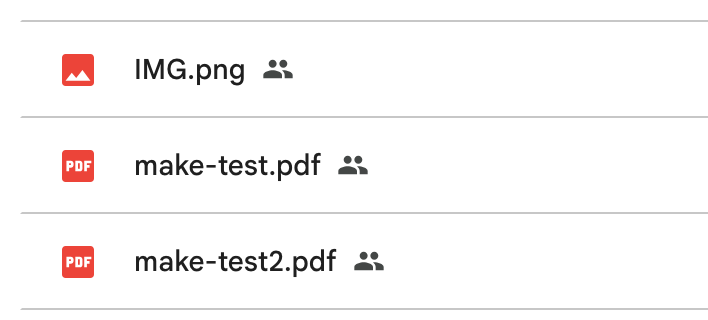
We tested this workflow with a single attachment and again with two attachments in the same email. In both tests, the files were uploaded to the target Google Drive folder successfully.
What this automation does
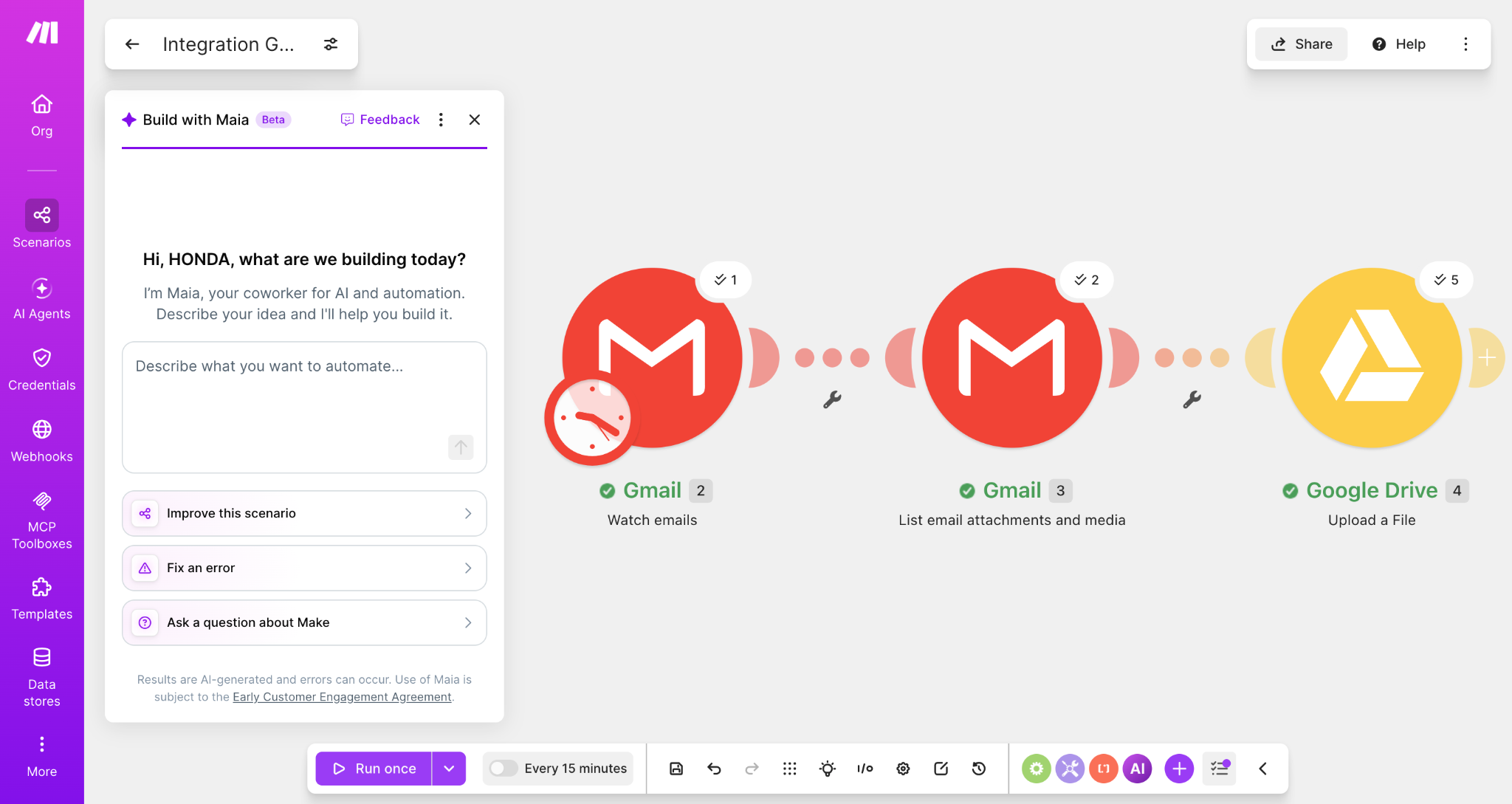
The workflow checks Gmail for new messages that contain attachments, retrieves the attachment file data, and uploads each file to a chosen Google Drive folder.
Step-by-step setup
1. Add Gmail — Watch emails
Create a new scenario in Make and add the Gmail Watch emails trigger. We used the Inbox, left messages unread, and filtered for messages that contain attachments or media.
For a clean test, set the starting point to From now on. This prevents old email from being processed during setup.
2. Add Gmail — List email attachments and media
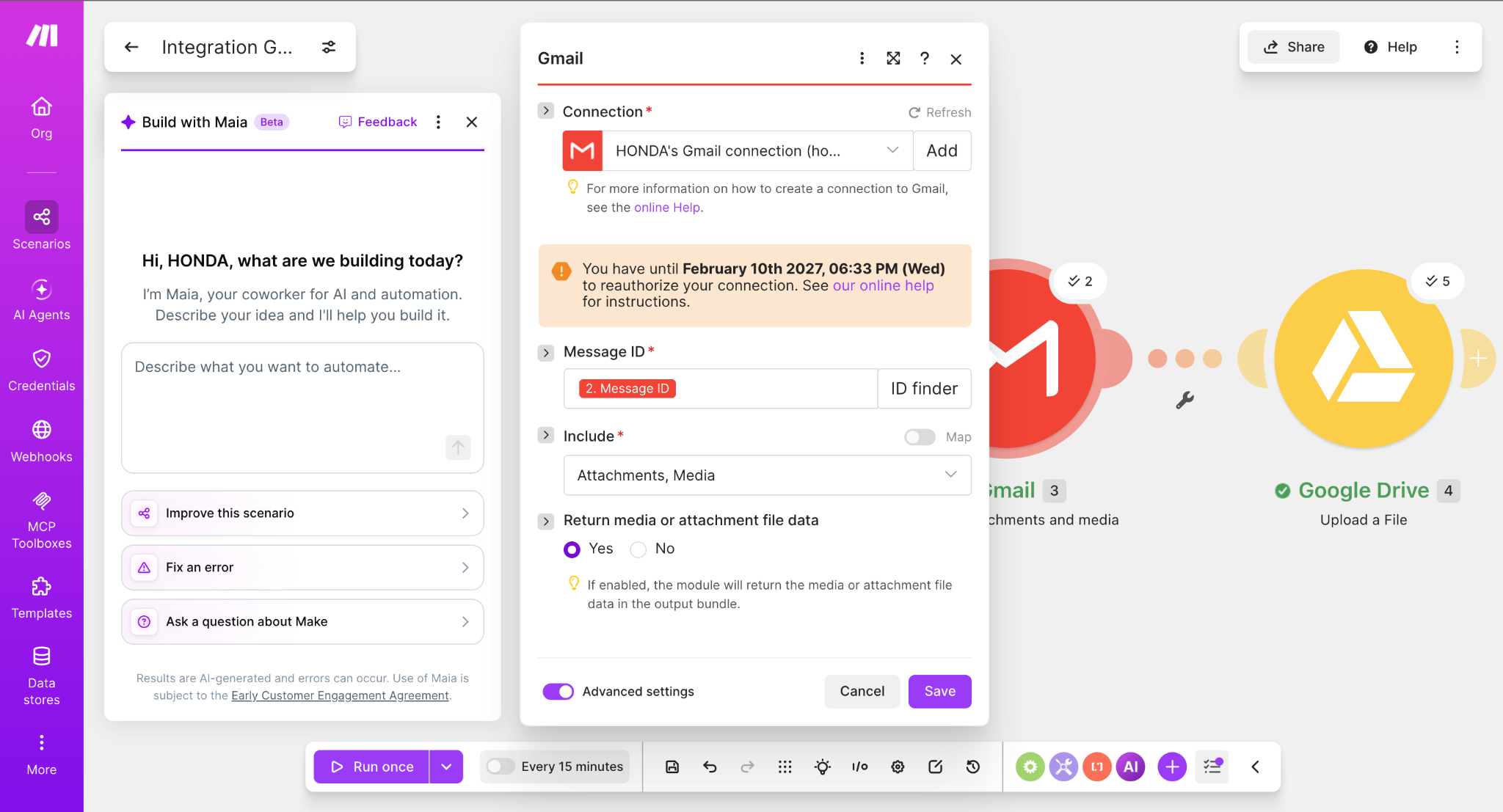
Add a second Gmail module: List email attachments and media. Map the Message ID from the first Gmail module into this module.
The critical setting is Return media or attachment file data = Yes. Without file data, Google Drive has nothing to upload.
3. Add Google Drive — Upload a File
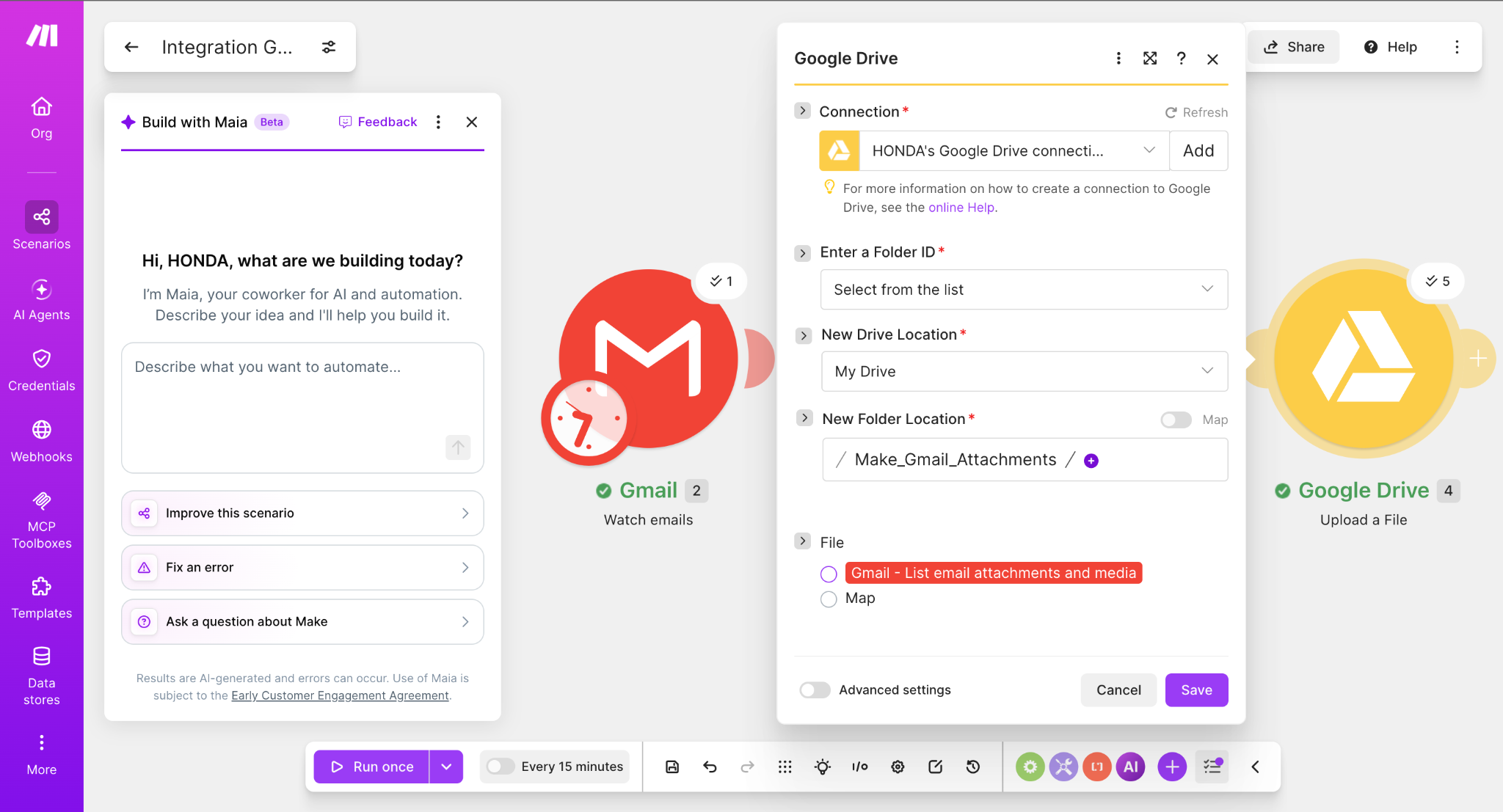
Add Google Drive Upload a File. Choose the destination in My Drive and select the folder you want to use.
For the file input, select the output from Gmail — List email attachments and media. Make can then pass the attachment's file name and file data into Google Drive.
4. Run a real test
Before enabling a schedule, send a new email with a small PDF or image attachment, then click Run once in Make. We found it more reliable to send the test email first and then run the scenario.
After a successful run, each module should show a successful execution and the file should appear in the chosen Drive folder.
What we verified
Successfully saved to Drive.
Both files were saved.
Mapped from Watch emails.
Returned by the attachment module.
Troubleshooting: the issues we actually hit
“Message ID must not be empty”
Do not type a fixed message ID. Click the Message ID field and map 2. Message ID from the Watch emails module. A mapped token is dynamic and changes for every new message.
Google Drive says “File Name” or “Data” must not be empty
Open the Gmail attachment module and confirm Return media or attachment file data = Yes. Then select Gmail — List email attachments and media as the file source in Google Drive.
Run once finishes, but nothing is uploaded
During our test, the first Gmail check completed before the new message was available. Sending the attachment email first and then clicking Run once allowed the full Gmail → Gmail → Drive chain to execute.
Should you use this workflow?
This setup is useful when you repeatedly download Gmail attachments and manually move them into Drive. It is especially suitable for invoices, reports, exported PDFs, images, or other repeatable attachment workflows.
It is less suitable if you need complex document classification, strict compliance controls, or advanced approval logic. In those cases, treat this workflow as the first step rather than the complete solution.
We also tested a MIME type filter that sends only PDF Gmail attachments to Google Drive. See How to Save Only PDF Gmail Attachments to Google Drive with Make.
Build the workflow in Make
You can start on Make's free plan and reproduce the same Gmail → Google Drive workflow we tested above.
Try Make for freeAffiliate link. We may receive a commission if you later become a paying customer. Your price is not increased.